Passphrases and sign-in
Password Security Tips
Practical password tips based on NIST, CISA and FTC advice: long unique passwords, a password manager, 2FA, phishing checks and what to do after a breach.
The short version
Most account takeovers do not need clever hacking. They use passwords that were leaked somewhere else, passwords that are easy to guess, or passwords that people typed into a fake login page. The tips below deal with those three problems.
Each tip is one short paragraph with the reason behind it and one link if you want more detail. The advice comes from NIST, the US standards body that writes the federal rules for digital authentication, and from the consumer pages of CISA and the FTC. Where these sources differ, we say so.
Creating passwords
1. Make passwords long
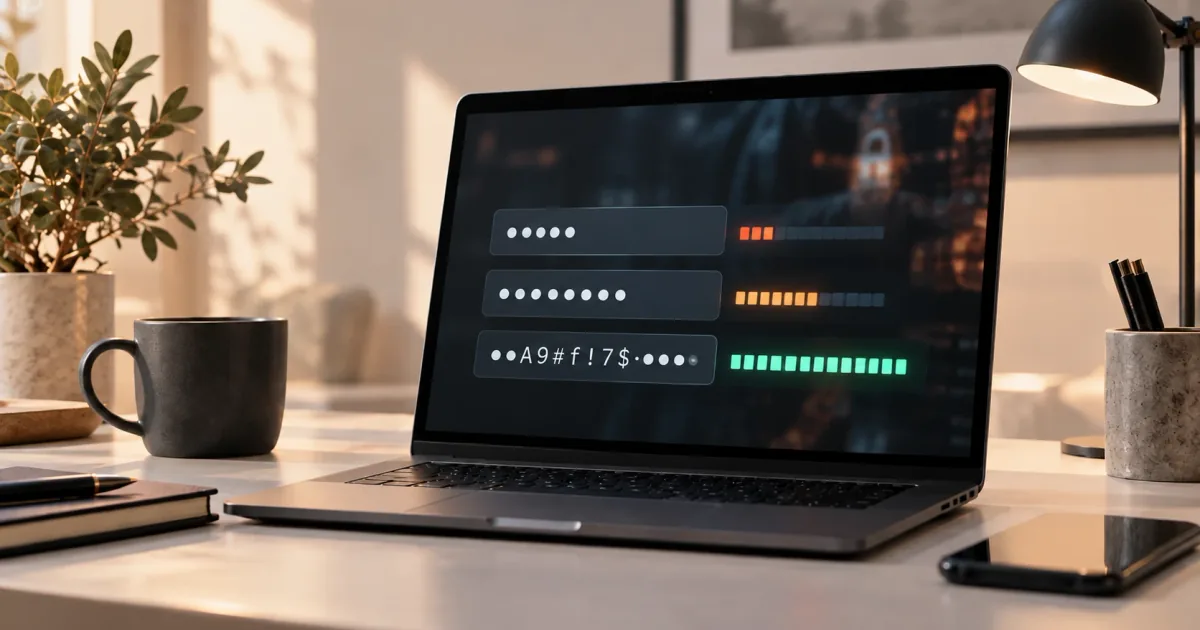
Length is the easiest way to make a password harder to guess, because every extra character multiplies the number of possible combinations an attacker has to try. NIST requires websites to ask for at least 15 characters when a password is the only thing protecting an account [1]. CISA suggests at least 16 characters [2], and the FTC says at least 12 in one article and at least 15 in another [6][10]. The numbers differ a little, but they point the same way: 15 or more is a good habit. Why length is your lever shows the maths.
2. Use a different password for every account
This is probably the most important tip. When a website leaks its passwords, attackers try the same email and password pair on many other sites. This is called credential stuffing: "testing username/password pairs obtained from the breach of another site" [3]. OWASP, a non-profit that publishes security guidance, explains that it works because most people use one email address everywhere [3]. If every password is unique, a leak from one site opens only that site. CISA gives the same advice: a different strong password for each account [2]. See what happens after a data breach.
3. Let a generator create them
Humans are bad at being random. We pick words we like, add a 1 or ! at the end, and capitalise the first letter, and attackers' guessing tools know these habits. The FTC says directly that people are not very good at creating random, strong passwords, and suggests using a password generator instead [6]. Our password generator runs in your browser and makes a random password of the length you choose.
4. Avoid personal details and common patterns
Names, birthdays, pet names, your town and your favourite team are easy to find on social media, so they are among the first things an attacker tries. CISA warns against simple sequences like 12345 and personal information such as birthdays and pet names [2]. Common patterns are a problem too: Summer2026! looks complex but follows a very predictable shape. NIST requires websites to check new passwords against a list of commonly used, expected or compromised passwords [1]. You can do a similar check yourself with our password strength checker: it tests a password against common-password dictionaries and patterns inside your browser, without sending it anywhere. For examples of what good and bad passwords look like, see strong password examples.
5. Use a passphrase for the few you must type
Some passwords you have to remember and type by hand: your computer login, your phone backup, the master password of your password manager. For these, a passphrase works well. A passphrase is a password made of several random words, for example cactus-violin-harbor-pencil-mosaic. CISA suggests 4 to 7 unrelated words [2], and the FTC adds that the words must be random, not a song lyric or famous quote [6]. The key word is random: a phrase you invent yourself is much easier to guess. Read what makes a passphrase strong.
Storing and protecting passwords
6. Keep them in a password manager
Nobody can remember 50 different random passwords, and that is fine. A password manager is an app that creates, stores and fills in your passwords, so you only remember one master password. CISA recommends using one instead of writing passwords down [2], and NIST requires websites to allow password managers and autofill [1]. Many browsers include a built-in manager, and that is already much better than reusing passwords. Read whether password managers are safe for the honest trade-offs.
7. Turn on two-factor authentication
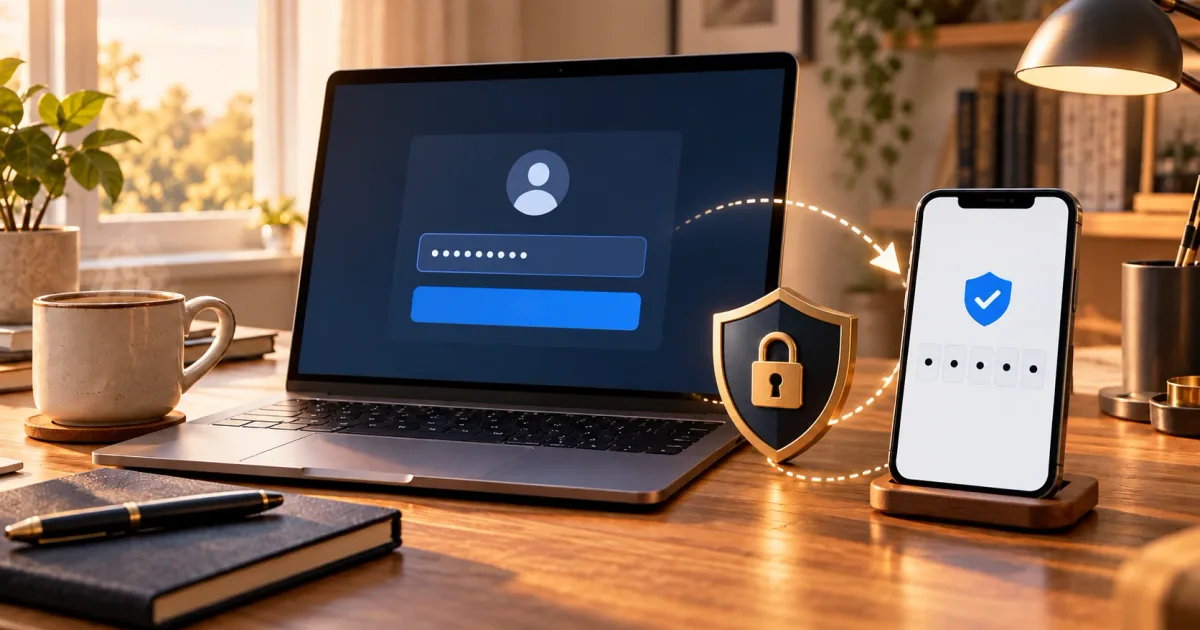
Two-factor authentication (2FA) asks for a second proof, such as a code from an app, in addition to your password. The FTC explains the benefit simply: a hacker who knows your password still cannot log in without the second factor [7]. Not all methods are equal. The FTC says authenticator apps are safer than text messages, and security keys are the most secure option [7]. A passkey, a sign-in method that uses your phone or computer unlock (fingerprint, face or PIN) instead of a password, is designed to resist phishing [9]. If a site offers a passkey or a security key, prefer it. What is two-factor authentication? compares the methods.
8. Protect your email account first
Your email is the key to most of your other accounts, because password reset links are sent there. If someone controls your inbox, they can reset your bank, shopping and social media passwords. The FTC calls this out directly and advises you to lock down your email [6], and CISA's MFA page uses the example of an email account that led to banking and shopping accounts [4]. So give your email the longest unique password you have and the strongest 2FA it supports, before you fix anything else.
9. Set up account recovery and backup codes
Think about what happens if you lose your phone or forget a password. Most services offer backup codes: a short list of one-time codes you can use when your normal second factor is not available. NIST describes these as saved recovery codes [1]. Print them or save them somewhere safe, separate from the device you use for 2FA. If a site asks you to set security questions, do not give honest answers that others can find, such as your mother's maiden name; the FTC warns against questions with public answers [6], and NIST no longer allows websites to use them when you choose a password [1]. One practical approach (our suggestion) is to use a random answer and store it in your password manager. More on recovery in the 2FA guide.
10. Lock your devices and keep them updated
A strong password does not help much if your phone is unlocked on a café table, with all your apps signed in. The FTC recommends setting your phone to lock automatically and using a passcode of at least 6 digits, or a fingerprint or face unlock [8]. Avoid PINs like 123456 or your birth year; a random PIN generator gives you one that is not a pattern. Also install updates soon after they arrive, or turn on automatic updates, because many updates fix security problems [8][10].
Everyday habits
11. Never enter a password from a link in a message
Phishing is a fake message, by email, text or chat, that tries to get you to type your password into a fake website. CISA lists the warning signs: urgent or emotional language, requests for personal information, and misspelled web addresses such as amazan.com [5]. It also notes that modern phishing messages can have perfect spelling [5]. The safe habit: do not click. Open the company's website by typing the address yourself, or use your own bookmark or app [5][10]. A password manager helps a little too, because it usually does not offer to fill a saved password on a look-alike address. See how passwords get stolen and cracked.
12. Change passwords after a breach, not on a schedule
Many people still change passwords every 90 days because an old workplace rule told them to. NIST now says websites must not force regular changes, but must force a change when there is evidence a password was compromised [1]. The reason is that forced changes lead to predictable steps like Spring2026! becoming Summer2026!. So: keep a good password as long as nothing has gone wrong. If a service tells you about a breach, change that password right away, and change it on any other site where you used the same one [6]. Read what NIST says about password rotation.
13. Do not share passwords or codes
A password you send in a chat or email can stay in that message history for years. And a one-time 2FA code should never be shared with anyone. The FTC is clear: whatever the story, do not share a verification code with someone who contacted you first [7]. Real banks and support teams do not need it. If you really need to share access with family, our suggestion is to use the sharing feature of your password manager, or the service's own family or guest accounts, so you never send the password itself. Read how password managers protect your vault.
14. If you build websites: follow NIST
Most of the tips above are easier for users when websites do their part. That means accepting long passwords and paste, not forcing character rules or regular changes, checking new passwords against a blocklist, and storing passwords only as salted, slow hashes. Our summary of the NIST password guidelines covers the rules, and how passwords should be stored covers the server side.
Where to start this week
You do not have to fix every account today. A sensible order: first your email, then your password manager or the device it lives on, then banking and anything with saved payment details, then social media. For each one, set a long unique password, turn on 2FA, and save the backup codes. Use the passphrase generator for the one or two passwords you need to remember, and let the password manager handle the rest.
Frequently asked questions
What is the most important password tip?
Use a different password for every account. Reused passwords are what make credential stuffing work: one leak can open many accounts. A password manager makes unique passwords practical.
How long should my password be?
At least 15 characters is a good rule. NIST requires 15 for passwords that are the only sign-in factor, CISA suggests 16, and the FTC suggests at least 12 or 15 depending on the article. Longer is better, especially for passwords a manager stores for you.
Should I change my passwords regularly?
Not on a fixed schedule. NIST says websites should not force periodic changes. Change a password when there is a reason: the service had a breach, you used it elsewhere, or you think someone else knows it.
Is it safe to write passwords down?
CISA recommends a password manager instead of writing passwords down. If you do keep a paper note, for example for backup codes or your master password, store it somewhere physically safe at home, not next to your computer or in your wallet with the device.
Are passkeys better than passwords?
For most people, yes, where a site offers them. A passkey uses your device unlock (fingerprint, face or PIN) and is designed to resist phishing, because it only works on the real website. You will still need good passwords for the many sites that do not support passkeys yet.
Do I still need a strong password if I use 2FA?
Yes. 2FA is a second lock, not a replacement for the first. NIST still requires at least 8 characters for passwords used with another factor, and a strong unique password keeps you safe if the second factor is ever bypassed.
References
- NIST, SP 800-63B Revision 4: Digital Identity Guidelines — Authentication and Authenticator Management, final, August 2025, https://pages.nist.gov/800-63-4/sp800-63b.html — sec. 3.1.1.2: minimum 15 characters for single-factor passwords and 8 for passwords used in MFA; no composition rules; no periodic changes but forced change on evidence of compromise; blocklist of common, expected or compromised passwords; password managers and autofill allowed, paste should be allowed; no hints and no knowledge-based questions; sec. 4.2.1.1: saved recovery codes.
- CISA, Use Strong Passwords (Secure Our World), undated, accessed 2026-10-07, https://www.cisa.gov/secure-our-world/use-strong-passwords — at least 16 characters; passphrases of 4–7 unrelated words; a different strong password for each account; use a password manager rather than writing passwords down; avoid simple sequences and personal information such as birthdays and pet names.
- OWASP Cheat Sheet Series, Credential Stuffing Prevention Cheat Sheet, accessed 2026-10-07, https://cheatsheetseries.owasp.org/cheatsheets/Credential_Stuffing_Prevention_Cheat_Sheet.html — definition of credential stuffing; email address as username makes reuse effective for attackers; MFA as the main defence.
- CISA, Turn On MFA (Secure Our World), undated, accessed 2026-10-07, https://www.cisa.gov/secure-our-world/turn-mfa — MFA on important accounts; example of a compromised email account leading to banking and retail accounts; phishing-resistant MFA/FIDO as the strongest option.
- CISA, Recognize and Report Phishing (Secure Our World), undated, accessed 2026-10-07, https://www.cisa.gov/secure-our-world/recognize-and-report-phishing — warning signs (urgent or emotional language, requests for information, misspelled domains such as amazan.com); phishing may have perfect grammar; do not click, verify by typing the official website or contacting the sender another way.
- FTC Consumer Advice, Creating Strong Passwords and Other Ways To Protect Your Accounts, updated November 2024, https://consumer.ftc.gov/articles/creating-strong-passwords-and-other-ways-protect-your-accounts — at least 12 characters; random-word passphrases, not lyrics or quotes; people are not good at creating random passwords, use a generator or password manager; security questions with public answers; lock down your email because reset links go there; after a breach change the password right away and wherever it was reused.
- FTC Consumer Advice, Use Two-Factor Authentication To Protect Your Accounts, September 2022, https://consumer.ftc.gov/articles/use-two-factor-authentication-protect-your-accounts — second factor stops a hacker who knows the password; text codes vulnerable to SIM swaps, authenticator apps safer, security keys most secure; do not share a verification code with someone who contacted you.
- FTC Consumer Advice, How To Protect Your Phone From Hackers, updated July 2022, https://consumer.ftc.gov/articles/how-protect-your-phone-and-data-it — auto-lock and a passcode of at least 6 digits, or fingerprint/face unlock; install operating-system updates.
- FIDO Alliance, Passkeys, accessed 2026-10-07, https://fidoalliance.org/passkeys/ — passkey definition; sign-in with the same biometric, PIN or device password used to unlock the device; resistant to phishing.
- FTC Consumer Advice, Protect Your Personal Information From Hackers and Scammers, updated November 2024, https://consumer.ftc.gov/articles/protect-your-personal-information-hackers-and-scammers — passwords of at least 15 characters; update software as soon as possible, turn on automatic updates; do not click links in unexpected messages, contact the company using a number or website you know is real.